In Chrome on Android phones, the notification prompt used to appear in the middle of the screen, dim the page and interrupt reading with two buttons, Block and Allow. From version 155, Chrome shows a discreet card at the top, just below the address bar, with the Allow button. The page stays free and, if the reader does not tap, the card hides by itself.
This means subscriber capture has changed. More than ever, you need to use the custom modal, because it is your own site's window, with your message and at the moment you choose, and the Chrome prompt only appears for those who have already said yes.
AI Web Push is already prepared for this change, and anyone using the plugin needs to adapt as soon as possible. Version 1.9.3 is already live. This post shows what changed in Chrome, why the custom modal matters more now, what AI Web Push already does, what changes in your numbers and the step by step to set it up.
What changed in Chrome
Before, the prompt sat in the middle of the screen, with the page dimmed. Anyone who tapped Block no longer saw that site's request, and only saw it again by changing the permission in the site settings, at the icon next to the address.
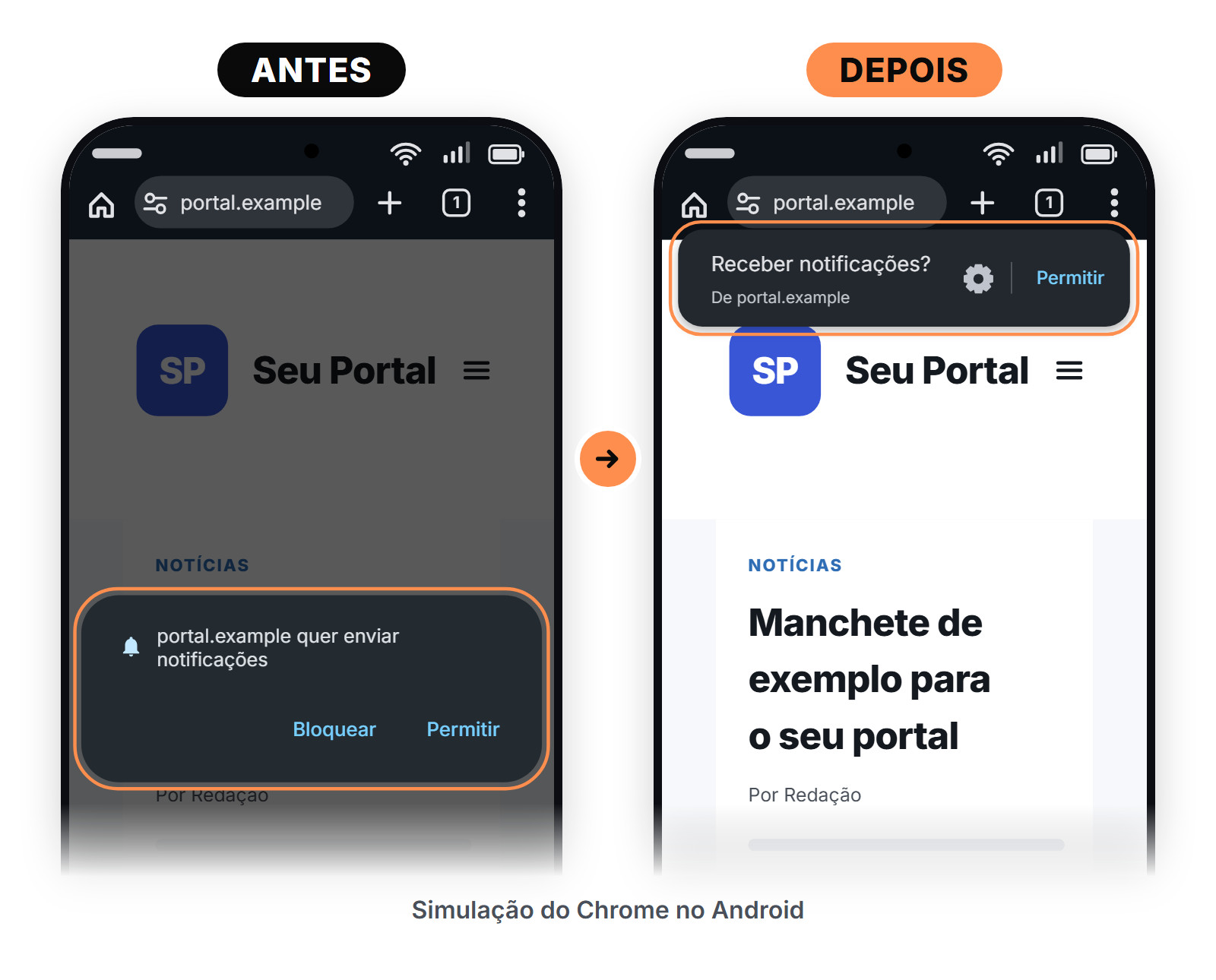
Now the card sits at the top, without dimming the page, and hides if the reader does not tap it. Google announced the change on July 22, 2026 and describes it as a less intrusive request that does not interrupt reading.
Chrome already had rules to avoid insisting with a reader who does not want notifications. In Chrome 155, what changes is the shape of the prompt.
When it arrives and what Google did not say
The change applies to Chrome on Android phones from version 155, which starts rolling out on October 6, 2026. It reaches devices gradually, as each one's Chrome updates. This means that, for a while, your site will receive readers with the old prompt and readers with the new card.
The announcement covers Android only and does not say what changes on desktop, how long the card stays on screen or how much this changes each site's capture. That is why this post does not promise a number of subscribers. Our reading is that readers and the market will take some time to get used to the new card.
Why the custom modal matters more than ever
The custom modal is your site's window that appears before the Chrome prompt. With it, your site explains with your message what the reader will receive, at the moment you choose, and the Chrome prompt only appears for those who have already said yes. It is also what Google recommends, asking for permission with context and not the instant the page loads.
Those who depend only on Chrome's standard prompt, which the plugin calls by default right when the reader arrives if the modal is off, may notice variation in subscriber entries while readers get used to the new card. Google says that asking for permission the instant the page loads creates friction.
The modal does not promise a number. After the yes in your site's window, the reader sees the Chrome card and still needs to tap Allow on it. That is why the modal message matters, because it is what tells the reader what they will receive.
What AI Web Push already does
AI Web Push is already prepared for this change. These are the version 1.9.3 plugin updates that matter for this scenario.
- Ask again when the reader opens another page. The Intervalo de reexibição (reshow interval), in the Modal tab, defines when your site asks again of a reader who did not respond. The default is 1440 minutes, or 24 hours. With the custom modal on and the interval at 0, the request returns right on the next page. In version 1.9.3 the field appears with the modal on or off. Without the modal, each new request is Chrome's own card, and the field warns that a very low value can lead the browser to block new requests. That is why the next page goes together with the modal on.
- Readers who turn it on later join the base. And if the reader does not tap the card right away and turns notifications on later, at the icon next to the address, AI Web Push puts that reader in your subscriber base. If the reader turns it on with your site closed, they join the base on the next visit to the site. The plugin does not register again a reader it has already recorded as subscribed in that browser.
- A recommendation in the dashboard. If your site uses only Chrome's standard prompt, the WordPress dashboard shows administrators a recommendation to turn on the custom modal. It goes away when you turn the modal on or choose not to see it again.
- New installs already start with the modal on. On sites that already use the plugin, the modal setup does not change.
- Firmer registration. A reader who removes the permission and grants it again, with the site open, is registered again.
What changes in your numbers after you update
After you update to version 1.9.3, some of your numbers start to be counted in a different way. If you follow subscriptions in Tag Manager or GA4, this does not indicate a defect. The day your site updates marks a change in the data series, so note that date. Four things change.
- Those who said no. This count now includes only those who really said no. Those who simply did not respond to the Chrome card are no longer in it, so the number may get smaller.
- Those who did not respond. They get their own new count, for the Chrome card that hid or was closed without an answer. That person can still turn notifications on later, at the icon next to the address.
- Modal cancel button. The count of those who tapped the cancel button of the custom modal no longer includes the Chrome card closed without an answer.
- New subscribers. The subscription count is sent at the same moment as before, so those who measure conversion do not need to redo the math. In the first days, a wave of new subscribers may appear, from readers who had already turned notifications on and were not yet in the base. How many, nobody has measured.
How to compare with before the update
To compare with the previous period, add the count of those who said no to the count of those who did not respond. The sum is comparable with what the single count showed before. In Tag Manager, to follow those who did not respond, create a Custom Event trigger for the new event and send it to GA4. The sum and the new event are below, with the names as they appear in the tool.
ai_web_push_permission_denied + ai_web_push_permission_timeoutThe new events and what each one measures are in the post AI Web Push and Google Tag Manager.
How to set up the custom modal
Update the plugin from the WordPress dashboard and follow the steps. Turning on the custom modal is the path we recommend, and the plugin keeps working without it, with Chrome's standard prompt.
- In the WordPress dashboard, click Ai Web Push in the side menu and open the Modal tab. The plugin screens are in Portuguese, so the names below are the ones you will see.
- Check Modal personalizado. Write the Mensagem do modal (modal message), up to 100 characters, and the text of the accept and cancel buttons, up to 20 characters each. Also choose the position and the overlay of the modal. Without an icon, the plugin uses your site's favicon.
- Choose when the modal appears, in Atraso do modal (modal delay, the seconds after the page loads, and 0 shows it right away) or in Ativação por scroll (scroll activation, the percentage of the page the reader needs to scroll, with a default of 25).
- Set the Intervalo de reexibição (reshow interval), which is how long the same visitor waits to see the request again. The default is 1440 minutes. With the modal on, the value 0 makes the request return right on the next page. If you have no reason to change it, keep the default.
- Save with the button at the end of the page.
- Test in a new Chrome profile, never in an incognito window, because push does not work there.
The complete step by step, with what to do if the modal does not appear, is in the help article How to enable the custom modal in AI Web Push.
Where to see the rest
What changed in each plugin version, with the file to download, is in the plugin changelog. The frequently asked questions about version 1.9.3 and Chrome 155 are in the knowledge base, at Frequently asked questions about version 1.9.3 and Chrome 155.
Chrome 155 starts rolling out on October 6, 2026, and the rollout is gradual. The best moment to turn on the custom modal and check the Intervalo de reexibição (reshow interval) is before the new card reaches your readers.
Sources. Chrome for Developers, Lighter notification prompts on Android, July 22, 2026, https://developer.chrome.com/blog/notification-prompts-android. web.dev, Web permissions best practices, June 17, 2024, https://web.dev/articles/permissions-best-practices. Chromium Dash, Chrome 155 schedule, read on October 5, 2026, https://chromiumdash.appspot.com/fetch_milestone_schedule?mstone=155